
Assets Manager
Organize media, structured content, and retrieve-data tables per project. Create folders, upload files or define blocks and columns, then read everything from your sites and backends using the Assets API and project API keys.
Overview
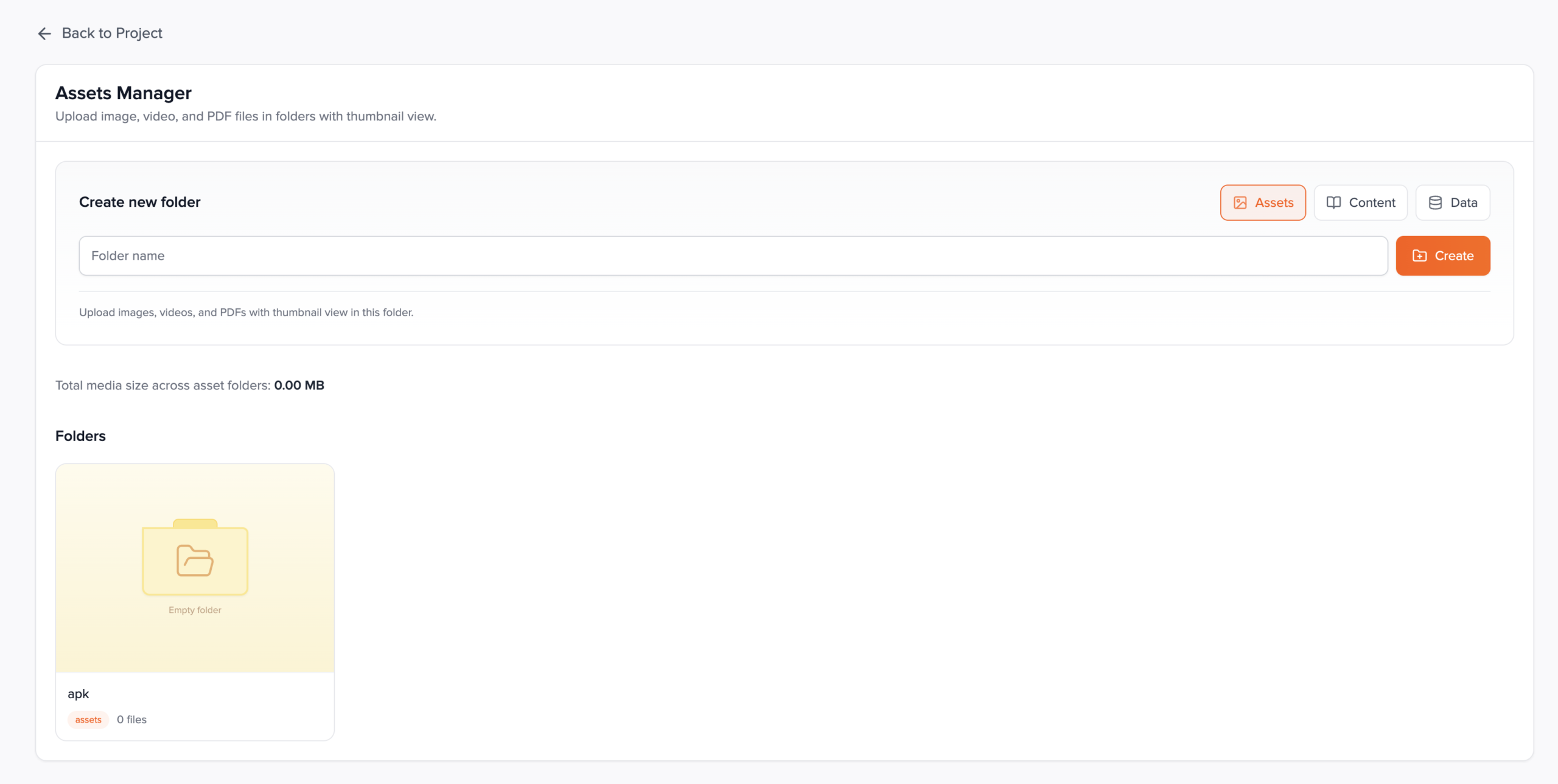
Assets Manager lives under Project → Assets Manager. Each project owns a set of folders. A folder is either an assets package (files with thumbnails), a content package (named blocks made of columns and typed fields), or a data package (tables with column keys and row storage behind a write/read/share-key model).
Uploaded binaries are stored on the server and exposed at stable URLs; structured content and table metadata live on the project record. You can copy folder IDs from the UI, manage files and blocks in the browser, and fetch JSON for headless sites or mobile apps using X-API-Key or a logged-in session.
Prerequisites
- A Przio project you can open in the app.
- Advance plan (or equivalent) — Assets Manager is not listed on the project home for classic-only projects.
- Permission to manage the project (owner or member with access to project settings and tools).
- For API access from another domain: a project API key and awareness of CORS/proxy behaviour (see Assets API).
File uploads are only allowed in assets folders. Content and data folders use forms and APIs instead of the multi-file upload control.
Using the app
Open Assets Manager from the project services grid. The page has a back to project control, a panel to create new folders, a running total of media size across all assets folders, and a grid of folder cards. Click a card to open that folder’s detail view; from there the UI changes based on folder type.
Folder types
Three mutually exclusive package types. Each maps to different UI and to specific REST operations under /api/projects/<projectId>/assets (plus /data/… for row data). Full request/response detail: Assets API reference.
| Type | Purpose | What you manage in the UI |
|---|---|---|
assets |
Images, videos, PDFs with thumbnail browsing. | Upload files, add image-by-URL, edit image metadata, delete files. Folder tile shows a preview collage or first image/video. |
content |
Reusable content packages for headless pages (sliders, hero copy, etc.). | Content blocks with a unique name, optional description, columns, and typed fields. Copy/paste columns and fields; use the in-page docs drawer for JSON shapes. |
data |
Retrieve-data: define schemas and ingest rows via session tokens, keys, or dashboard tools. | Data tables with column keys (string, number, boolean, json), write/read/share link controls, optional Excel-style import, row browser, and code snippets for session exchange. |
When creating a folder, pick Assets, Content, or Data before entering the name. The helper text under the form summarizes each mode. You cannot mix types inside one folder.
assets — media package
Stores files and optional external image URLs; served at public /project-assets/… URLs for uploads.
Use this type for DAM-style libraries: campaign images, video snippets, PDFs. The dashboard counts total bytes across all assets folders. Binary uploads go through multipart POST /api/projects/PROJECT_ID/assets/upload with folderId (not available with API key — user session only). Registering a remote image uses POST /api/projects/PROJECT_ID/assets with JSON folderId + imageUrl (and optional fileName).
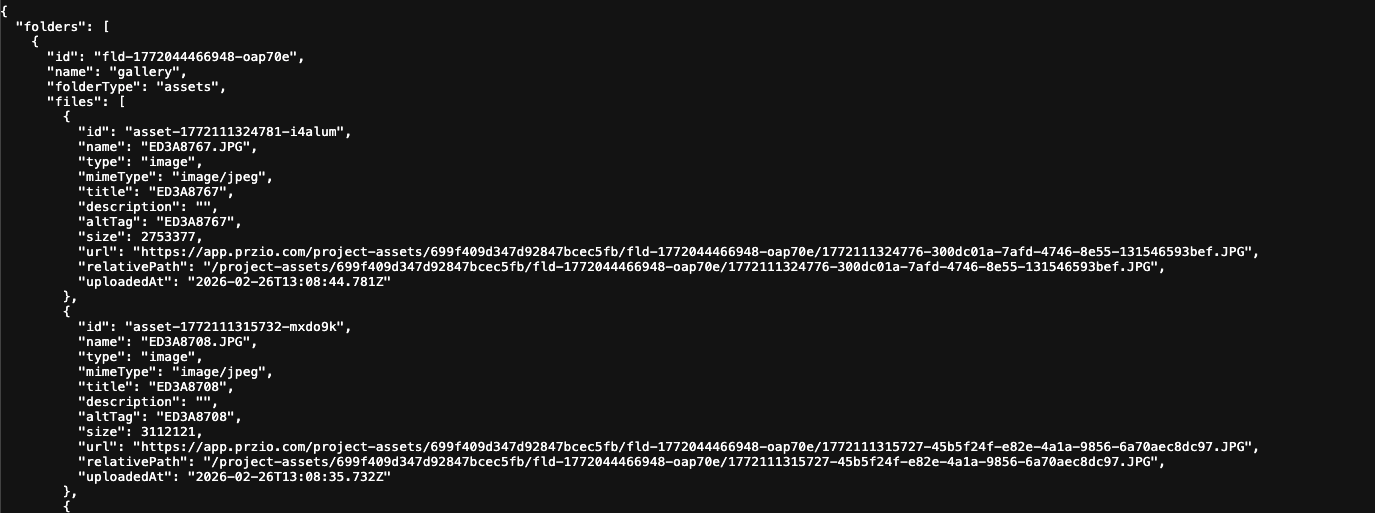
Read: GET /api/projects/PROJECT_ID/assets with optional folderId returns files[] including url, type, size, title, altTag, etc. API key auth is allowed for this GET. Update meta: PUT …/assets with folderId, fileId, and title / description / altTag (images only). Delete file: DELETE …/assets with folderId + fileId. Delete folder: DELETE …/assets with folderId only — removes all files in that folder from storage where applicable.
content — structured blocks
Headless CMS–style blocks: named groups of columns and typed fields, all stored on the project document.
Ideal when marketing edits copy in Przio and your site or app renders layouts from JSON. Each content block has a unique name per folder, optional description, columns (each with nested fields), and/or top-level fields. Field types include text, textarea, richText, itemList, imageUrl, number, boolean, json.
Create block: POST …/assets with folderId + contentBlock object. Update: PUT …/assets with folderId, blockId, blockName, and fields / columns. Delete: DELETE …/assets with folderId + contentBlockId. Read: GET …/assets?folderId=… returns all blocks; or blockId / blockName (optionally scoped with folderId) to fetch one block for a page build pipeline. GET supports API key for public read patterns.
data — retrieve-data tables
Schema and keys live on the folder; row documents are stored separately and accessed only through the data API.
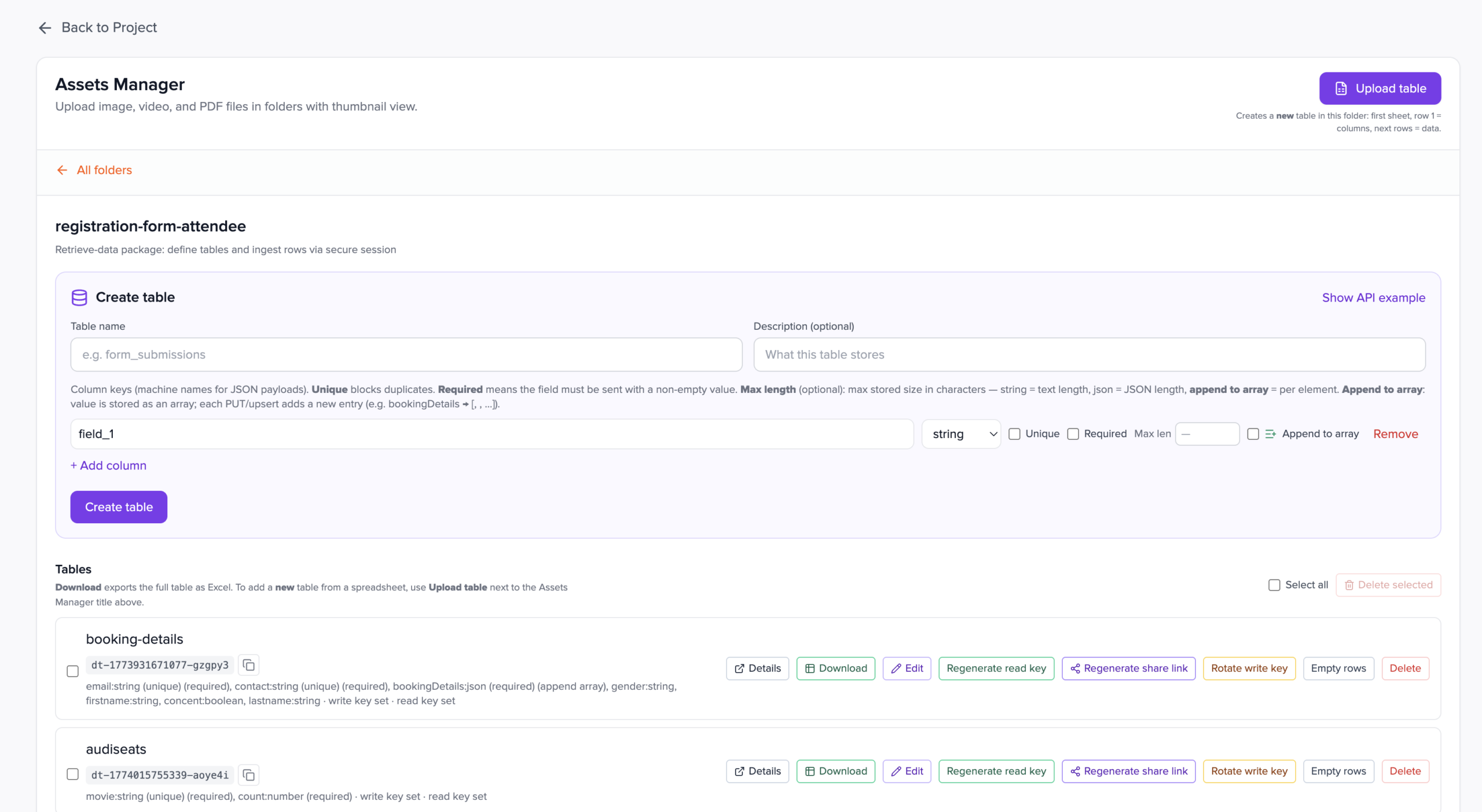
Define one or more tables per folder with column keys (string, number, boolean, json) and optional unique, required, appendArray, maxLength. Creating a table via POST …/assets with dataTable returns a write key once — it is hashed server-side. Use the write key on your backend to call POST /api/projects/PROJECT_ID/data/session and obtain a short-lived JWT for row writes, or use authenticated dashboard flows.
Table admin: PUT …/assets with dataTableId updates name, description, or replaces keys; boolean flags rotate write key, read key, or share-link token (each new secret shown once). Delete table: DELETE …/assets with folderId + dataTableId (removes all rows), or bulk dataTableIds, or emptyRowsOnly: true to truncate rows only. Read definitions: GET …/assets?folderId=… returns dataTables with writeKeyConfigured / readKeyConfigured / shareLinkConfigured booleans — never the secrets.
Row APIs (not on /assets): /api/projects/PROJECT_ID/data/rows (GET/POST/PUT/PATCH/DELETE), /data/session, /data/rows/bulk, /data/rows/clear, /data/rows/query, etc. See API reference — Data rows and the repo file documentation/retrieve-data-api.md.
Creating folders
Choose type and name
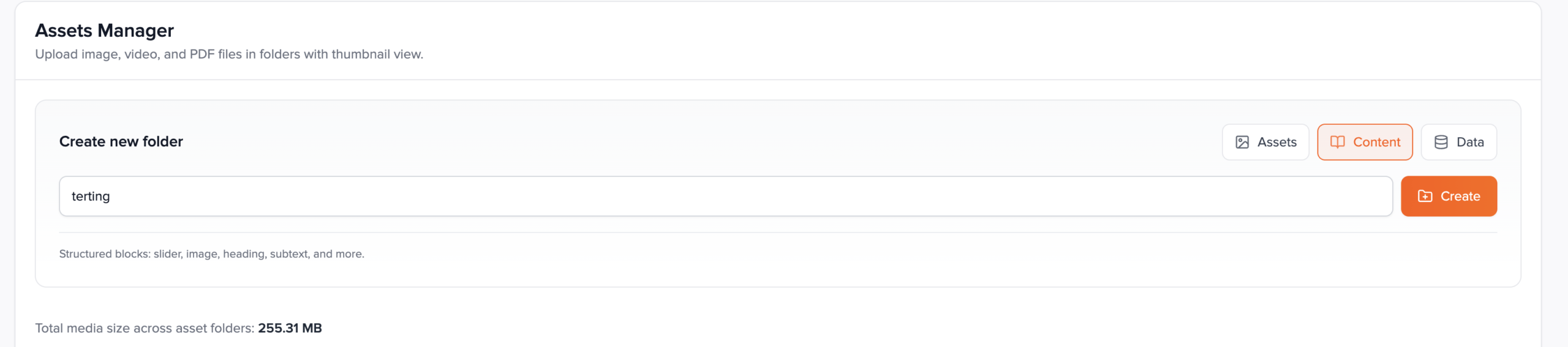
Select the folder kind, enter a label, then create.
Use the three-way toggle (Assets / Content / Data) to set folderType. Enter a clear folder name (marketing might mirror site section or environment). Click Create; the new folder appears in the grid with a type badge and counts (files, blocks, or tables).
Folder list
Cards, IDs, and delete
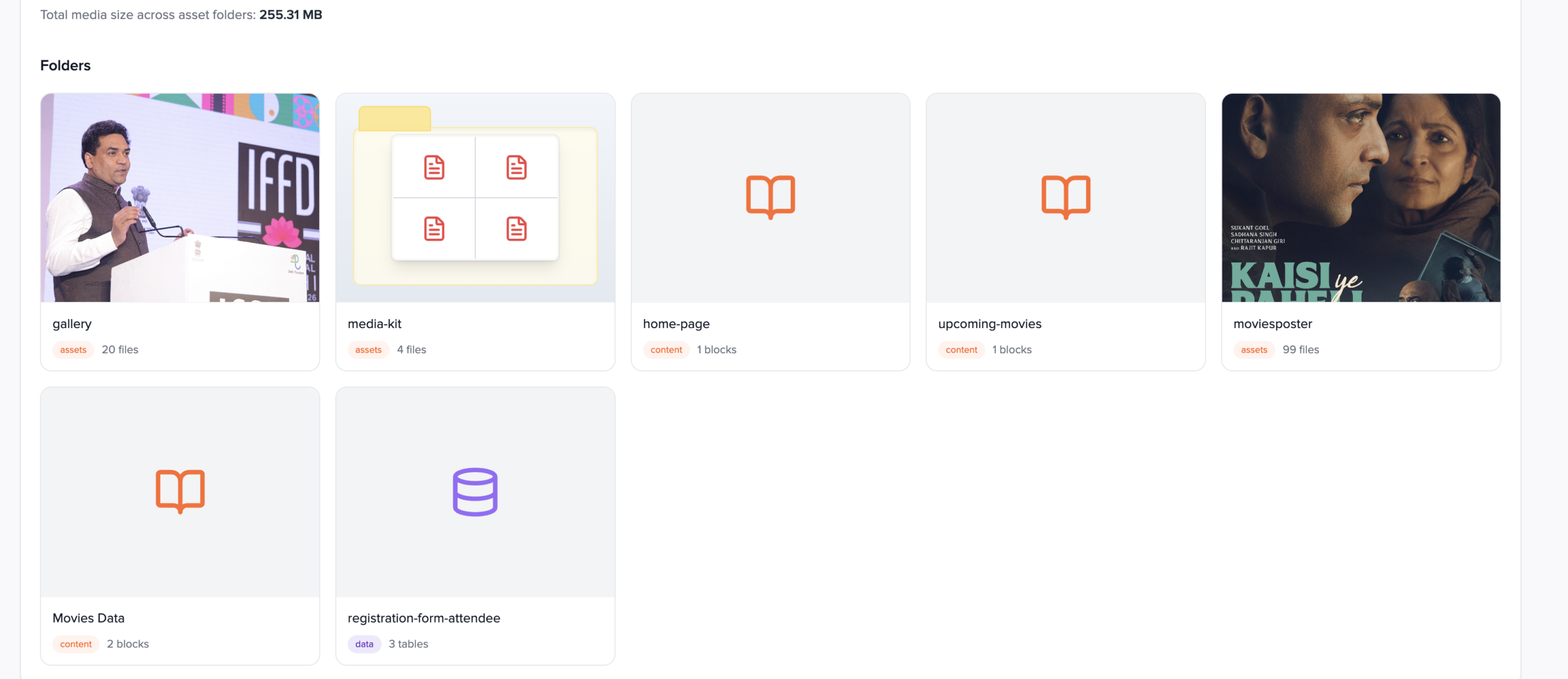
Each tile opens the folder; hover actions copy the folder ID or delete the folder.
Click a card to navigate into the folder. On hover, use Copy folder ID for API calls (folderId query parameter or request body). Delete folder removes the package from the project; for data folders this also removes associated tables and stored rows as implemented by the API. The dashboard shows Total media size across asset folders so you can monitor storage footprint for binary content only.
Assets folders
Upload files
Multi-select images, videos, and PDFs; each file is capped at 25 MB.
Inside an assets folder, click Upload Assets. Accepted types match image/*, video/*, and application/pdf. The server stores files under the project’s asset storage root and returns public URLs. Oversized files receive an error and are not stored.
Add image by URL
Register an image that already lives on your domain without re-uploading the bytes to Przio.
Paste an http or https image URL and click Add URL. The server stores the link as an image entry (no re-upload of bytes). Use this for CDN or CMS URLs you already serve; the dashboard copy often suggests using your own domain for clarity.
Thumbnails, load more, and delete
Grid preview with pagination; remove files you no longer need.
Images and videos show previews; PDFs show an icon badge. Large folders load in pages; use Load more to reveal additional files. Delete removes the file from the folder and storage as applicable.
Image metadata (title, description, alt)
For images, open Meta to set SEO and display fields.
Title, description, and alt tag help downstream consumers (sites, apps, accessibility). The list view prefers title over raw filename when present. These fields are included in API responses for asset file objects.
Content folders
Content blocks
Named blocks (e.g. homepage-slider) group structured fields for your front end.
Add a block with a unique block name and optional description. Names should be stable API identifiers your site code can request by name or ID. You can edit or delete blocks after creation.
Columns and fields
Each block has columns; each column contains multiple fields with a key and type.
Use Add Column to build horizontal sections (for example “column 1 = hero image + headline”, “column 2 = supporting text”). Inside a column, define fields with a key and type. The UI supports copy/paste of columns and fields to speed up repetitive layouts. Field types include text, textarea, richText, itemList, imageUrl, number, boolean, and json — matching what the Assets API stores and returns.
Documentation drawer
Use the built-in docs panel for example fetch code and JSON shapes.
The content folder view includes expandable documentation with copy-friendly snippets (for example fetching a folder by folderId and locating a block by name). Prefer requesting a single content folder by ID when you only need one package, to reduce payload size.
Data (retrieve) folders
Tables and column keys
Define table name, description, and keys with types and optional rules.
Create a data table with columns typed as string, number, boolean, or json. You can mark keys unique, required, appendArray (array merge behaviour), and maxLength where supported. On create, the app shows a write key once — store it securely; the server only keeps a hash.
Write, read, and share link
Write key mints short-lived session JWTs; read key and share token gate row reads.
Rotate write key invalidates old keys for session exchange. Generate read key (or regenerate) yields a read-only secret for GET /data/rows-style access — shown once when generated. Share link produces a token for browser URLs with ?share=; it is independent of the read key, so rotating read keys does not revoke share URLs until you regenerate the share token.
Rows, import, and Excel
Browse rows in the app; bulk import or export via spreadsheet workflows where available.
The data-folder toolbar can include upload/import flows that create tables or append rows (see product UI). For automation, use the documented REST endpoints for session creation, single and bulk row insert, upsert, update, delete, and paginated list. Full security and endpoint tables are described in Przio’s retrieve-data documentation shipped with the product repository (documentation/retrieve-data-api.md).
Recommended pattern: call POST .../data/session from your backend with the write key, then pass only the short-lived JWT to the browser if clients must post rows — avoid embedding write keys in front-end bundles.
Assets API (summary)
Full reference: Assets Manager — API reference (all methods, bodies, and data-row pointers).
GET /api/projects/PROJECT_ID/assets returns folder metadata (and nested files, content blocks, or data table definitions depending on type). Authenticate with a logged-in user session or with X-API-Key: YOUR_KEY / Authorization: Bearer YOUR_KEY for read-only access scoped to that project.
Query parameters:
folderId— return a single folder object (sanitized: no key hashes; flags likewriteKeyConfiguredonly).blockIdorblockName— with or withoutfolderId, return one content block plus itsfolderId.
Responses are CORS-enabled for browser use. If a reverse proxy answers OPTIONS without forwarding to the app, or duplicates CORS headers, browsers may block the call — see internal notes such as frontend/docs/ASSETS_API_CORS.md when self-hosting.
fetch('https://app.przio.com/api/projects/PROJECT_ID/assets?folderId=FOLDER_ID', {
  headers: { 'X-API-Key': 'YOUR_API_KEY' },
})
  .then((r) => r.json())
  .then(console.log);
Public file URLs for uploaded binaries are served from the app’s project-assets route pattern (as shown in the dashboard after upload). Image URL entries point at your provided URL.
Implementation checklist
- Confirm project license includes Assets Manager.
- Create folders with correct types; copy
folderIdvalues into your integration notes. - Assets: upload or link media; set image meta where needed.
- Content: stable block names; columns/fields match what your renderer expects.
- Data: capture write key on table create; configure read or share access for consumers.
- API: use project API key or session; test CORS from your production origin if calling from the browser.
FAQ
Why is Upload Assets disabled or missing?
You are either not inside an assets folder, or you are on the “all folders” list view. Open a folder whose badge is assets. Content and data folders use different controls.
Can I change a folder’s type after creation?
The product is designed around a fixed folderType per folder. Create a new folder of the desired type and migrate content, or delete and recreate if appropriate.
Where did my write key go?
Write keys are shown once at table creation (or after rotation). The API never returns the plaintext again — only a hash is stored. Rotate only when you can update all servers that hold the key.