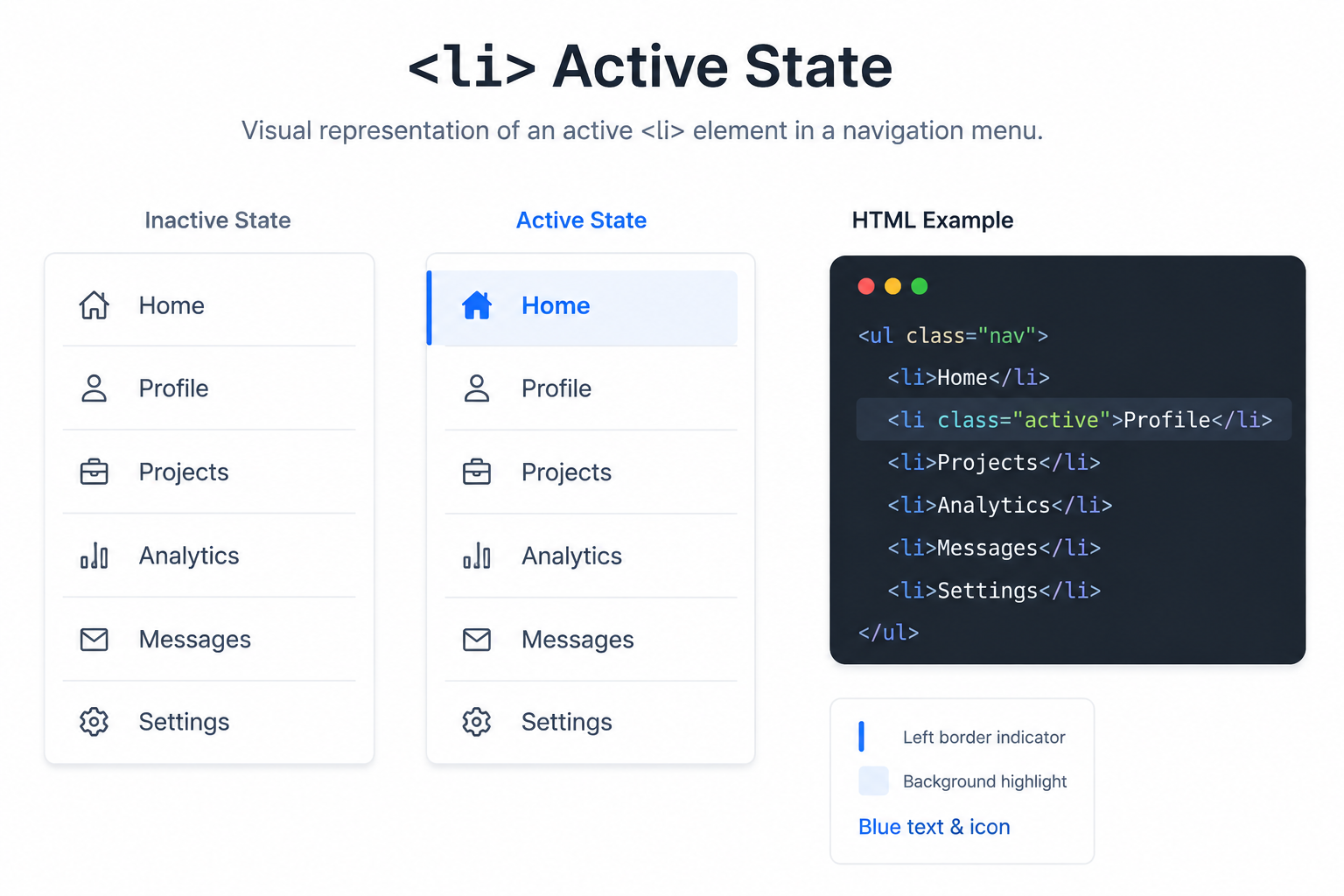
A highlighted active menu item helps visitors understand where they are on your website. For ecommerce stores, landing pages, dashboards, and campaign microsites, this small detail can improve navigation clarity and reduce friction. If your menu uses a simple unordered list, you can add an active class to the clicked li item with JavaScript, then style that class with CSS.
This is especially useful when building hosted storefronts, product pages, or promotional pages on platforms like PRZIO Free Web Hosting, where clean navigation supports faster launches and better user experience. You can also combine active menu behavior with analytics from PRZIO Website Tracker to understand which pages and categories visitors engage with most.
Why Active Menu Highlighting Matters
An active menu state is more than a design effect. It gives users immediate context. When someone clicks Home, Products, Pricing, or Contact, the selected item should look different from the rest of the menu. This helps visitors stay oriented, especially on ecommerce websites with category navigation, account menus, checkout steps, or personalized landing pages.
For growth teams, clear navigation also supports conversion. If users can quickly recognize their current section, they are less likely to bounce or repeat clicks. On campaign pages, product recommendation sections, and personalized offers, an active menu state can guide visitors toward the next meaningful action.
Basic HTML Menu Structure
Start with a simple ul and li menu. Each list item contains a link. The first item can have the active class by default if you want Home to appear selected when the page first loads.
<ul id="mainMenu"> <li class="active"><a href="#home">Home</a></li> <li><a href="#products">Products</a></li> <li><a href="#offers">Offers</a></li> <li><a href="#contact">Contact</a></li> </ul>
CSS to Highlight the Active LI
The CSS decides how the selected menu item looks. You can use a different background color, border, text color, or font weight. Keep the effect clear but not distracting.
#mainMenu li { list-style: none; display: inline-block; padding: 10px 16px; cursor: pointer; } #mainMenu li a { text-decoration: none; color: #222; } #mainMenu li.active { background: #111827; border-radius: 8px; } #mainMenu li.active a { color: #ffffff; font-weight: 600; }
JavaScript Code to Add Active Class on Click
The JavaScript logic is simple. First, select all menu list items. Then listen for a click on each item. When a user clicks an item, remove the active class from every menu item and add it only to the clicked one.
const menuItems = document.querySelectorAll("#mainMenu li"); menuItems.forEach(function(item) { item.addEventListener("click", function() { menuItems.forEach(function(menuItem) { menuItem.classList.remove("active"); }); this.classList.add("active"); }); });
Step-by-Step Explanation
- Create the menu: Use a ul element with multiple li items. Each item can link to a page section, category, or URL.
- Add default styling: Use CSS to make the menu readable and visually consistent with your brand.
- Define the active class: Style li.active so the selected menu item stands out.
- Select menu items in Use document.querySelectorAll to get every list item inside the menu.
- Listen for clicks: Add a click event listener to each list item.
- Remove old active states: Before adding the new active class, remove it from all items so only one item is highlighted.
- Add the new active state: Apply active to the clicked item using classList.add.
Example Use Cases for Ecommerce and Marketing Sites
Improving the Active Menu for Real Websites
For a single-page website, click-based active states are often enough. For a multi-page website, you may want the active class to match the current URL instead. For example, if the visitor is on /products, your script can compare each link href with the current browser path and mark the correct menu item active automatically.
You can also connect navigation behavior to growth experiments. With PRZIO AB Testing and Personalization, teams can test different menu labels, category order, or CTA placement to see which version helps visitors move deeper into the site.
Common Mistakes to Avoid
CTA: Build Better Website Experiences with PRZIO
Want to integrate this into your storefront or website? PRZIO helps you ship hosting, personalization, campaigns, and recommendations from one platform. Explore PRZIO Free Web Hosting to launch fast websites with clean navigation, or book a PRZIO demo to discuss how active menus, tracking, personalization, and conversion tools can work together for your growth stack.
FAQs
Can I use this active class code on any website?
Yes. The JavaScript works on most standard HTML websites as long as your menu uses list items and the selector matches your menu ID or class.
Should the active class be added to li or a?
Both approaches can work. Adding it to li is common because it lets you style the whole menu item area, including padding and background.
Does this improve SEO directly?
An active menu class is not a direct ranking factor, but better navigation can improve user experience, engagement, and conversion paths. Those signals matter for practical website growth.