Swiper sliders are useful for promoting categories, seasonal offers, product launches, and curated collections. A static slider, however, can quickly become stale or show the same campaign to every visitor. By dynamically updating a Swiper slide image with JavaScript, you can keep creative current without rebuilding the entire slider. When paired with PRZIO personalization, the same slider can present a more relevant message based on visitor audience, behavior, or campaign source.
This tutorial explains a dependable implementation pattern: keep the Swiper instance intact, replace image assets safely, preserve responsive behavior, and use PRZIO to decide which creative each audience should see.
When dynamic Swiper images can improve conversions
Dynamic image updates are especially valuable when a storefront runs several offers at once. A first-time visitor might see a welcome offer, a returning shopper could see recently viewed categories, and a paid-campaign visitor may need landing-page creative that matches the ad they clicked.
Prepare each Swiper slide for image updates
Start with a stable slide structure. Give every image a predictable selector, such as js-slide-image, and assign each slide a unique data attribute such as data-slide-id. The JavaScript should target the image inside a specific slide instead of relying only on the active slide position. This prevents the wrong asset from being replaced when users swipe quickly or when slide order changes.
Include meaningful fallback image URLs and descriptive alt text in your campaign data. If your site uses responsive images, update the image srcset and sizes values alongside src. Otherwise, a visitor on a small screen could receive a desktop asset or continue seeing an old responsive source.
Keep campaign content separate from slider behavior
Store slide details in a JavaScript object or fetch them from your campaign configuration. Each item should include a slide ID, image URL, alt text, destination URL, and optional audience label. Swiper should remain responsible for navigation and layout; your content logic should decide which image belongs in each slide.
Update a Swiper image with JavaScript
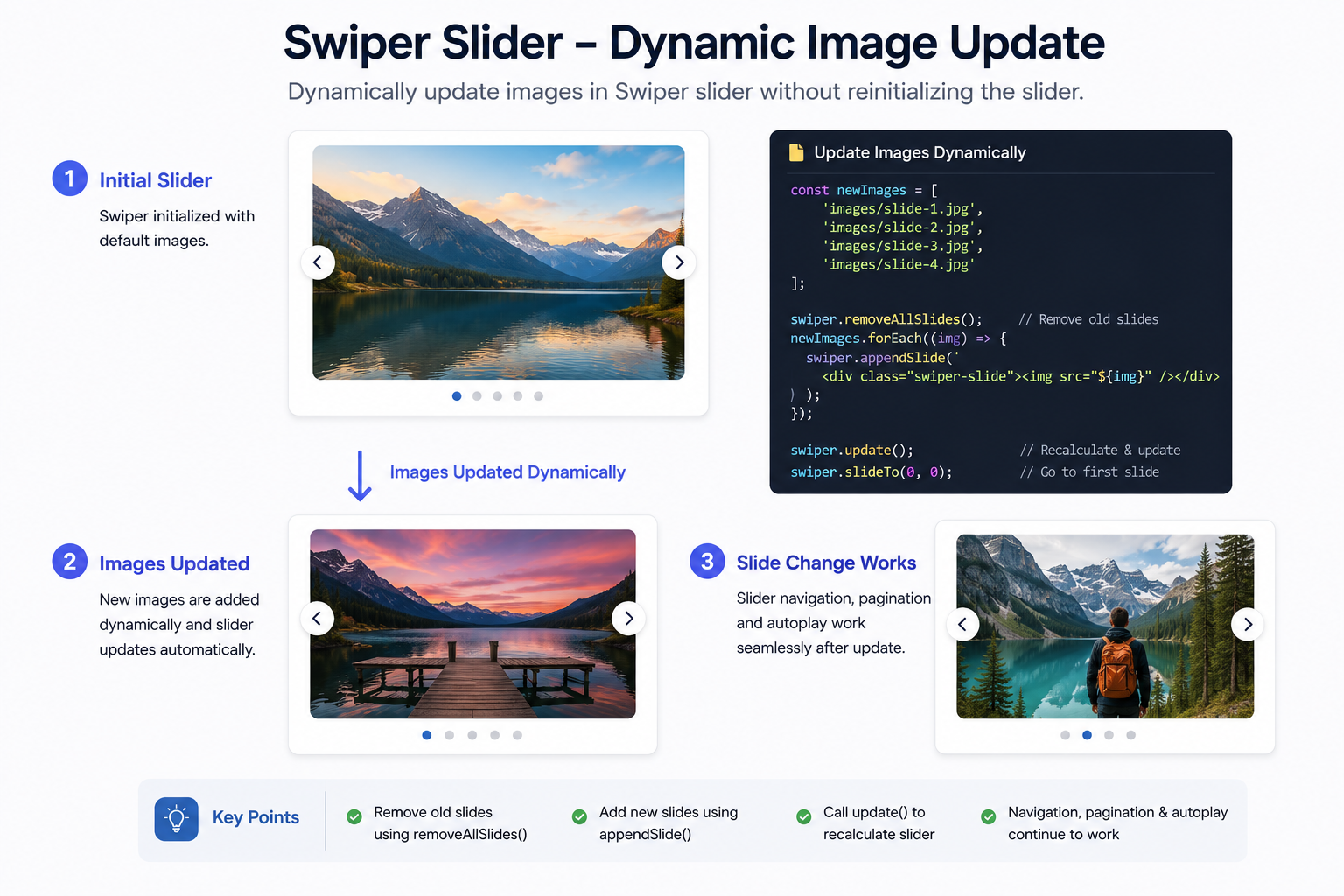
First, keep a reference to your initialized Swiper instance. Then select the image you want to replace. For example, the core selector can be written as: const image = document.querySelector('.js-slide-image[data-slide-id="summer"]');
Do not immediately switch to a large image URL before it has loaded. Preload the next asset first, then update the visible image after the browser confirms it is available. A practical sequence is: const preload = new Image(); preload.onload = () => { image.src = nextImage.url; image.alt = nextImage.alt; swiper.update(); }; preload.src = nextImage.url;
This approach reduces visible flashing and avoids showing an empty slide during slower connections. If you change only the image source and the image has fixed dimensions, Swiper usually does not need a full recalculation. Calling swiper.update() is useful when the new asset changes slide dimensions, when you add or remove slides, or when responsive layout measurements may have changed.
For a slide using multiple source formats, update all relevant sources before setting the final image src. Also preserve width and height attributes or reserve space with CSS so the replacement does not cause layout shift. A campaign banner that jumps while loading can undermine the conversion benefit of a more relevant offer.
Personalize the slider with PRZIO
Dynamic JavaScript handles the image replacement, while PRZIO determines which variant should be relevant for a visitor. Use PRZIO Audience Manager to organize audiences such as new visitors, repeat customers, visitors from a specific campaign, or shoppers who engaged with a category.
Next, create audience-based page variants with PRZIO AB Testing and Personalization. Each variant can contain the appropriate slide configuration, asset URL, promotion copy, and destination. For example, a returning skincare shopper could receive a slider image for replenishment products, while a new visitor sees a first-purchase offer.
- Define one audience and one clear hypothesis for the slider.
- Create a control version with your default image.
- Create a PRZIO variant with the audience-specific campaign image.
- Use your JavaScript image updater to read the variant’s configured image data and replace the matching slide asset.
- Keep the call to action and product destination aligned with the image shown.
Measure the right slider events
Personalization should be evaluated by outcomes, not simply by whether an image rendered. Track slide impressions, slide navigation, banner clicks, product-page visits, add-to-cart events, and completed purchases. With the PRZIO Website Tracker, growth teams can connect event-level visitor activity to the campaign and audience that saw a specific variant.
Use consistent event names, such as hero_slide_view and hero_slide_click, and pass the slide ID, campaign name, and variant name as properties. Avoid recording repeated impressions every time Swiper recalculates its layout; count an impression when a slide becomes meaningfully visible to the visitor.
Common implementation mistakes
Bring personalized Swiper campaigns into your growth workflow
Want to integrate this into your storefront or website? PRZIO helps you ship hosting, personalization, campaigns, and recommendations from one platform. Book a demo to discuss your implementation, or explore PRZIO personalization and A/B testing for audience-based page variants.
Frequently asked questions
Do I need to reinitialize Swiper after changing an image?
No. Replacing an existing image source normally does not require reinitialization. Use swiper.update() when slide dimensions or the number of slides changes.
Can I personalize only one slide in a carousel?
Yes. Target a specific slide by its data attribute, leave the remaining slides unchanged, and measure the personalized slide separately from the rest of the carousel.
What is the best first test?
Start with one high-traffic homepage or category-page slider. Compare the default creative with one audience-specific image and evaluate click-through rate, product engagement, and conversion impact before expanding the program.